> For the complete documentation index, see [llms.txt](https://docs.cwallet.com/llms.txt). Markdown versions of documentation pages are available by appending `.md` to page URLs; this page is available as [Markdown](https://docs.cwallet.com/account/how-to-log-in-switch-accounts.md).
# How to Log In / Switch Accounts
Accessing your account is designed to be seamless yet highly secure. You can log in using your registered Email, Phone number, or linked Social Media account.
Still did not create an account, sign-up now: [How to Create an Account?](/account/how-to-create-an-account.md)
### **Log in**
#### **Email/Phone Number**
If you use an Email or Phone Number to log in, you will be asked to enter the login password.
#### **Social Platform**
If you choose a social media account to log in, you just need to authorize/confirm it from the social media platform for the first time.
⚠️ **Important Note:** If you use a new device to log into your Cwallet account, then you will be asked to authorise existing logins.
At this time, you can check your Cwallet App, you will receive a pop-up notification, and you need to click the '**Authorise**' button to complete your log in process.
If it is inconvenient for you to use your old device to authorize, you can also choose to authorize it by receiving an email verification code.
### **Switch Accounts**
If you have multiple accounts, this is an easy way to manage your accounts. You do not need to log in or log out every time; just a simple click, and then you can access your accounts.
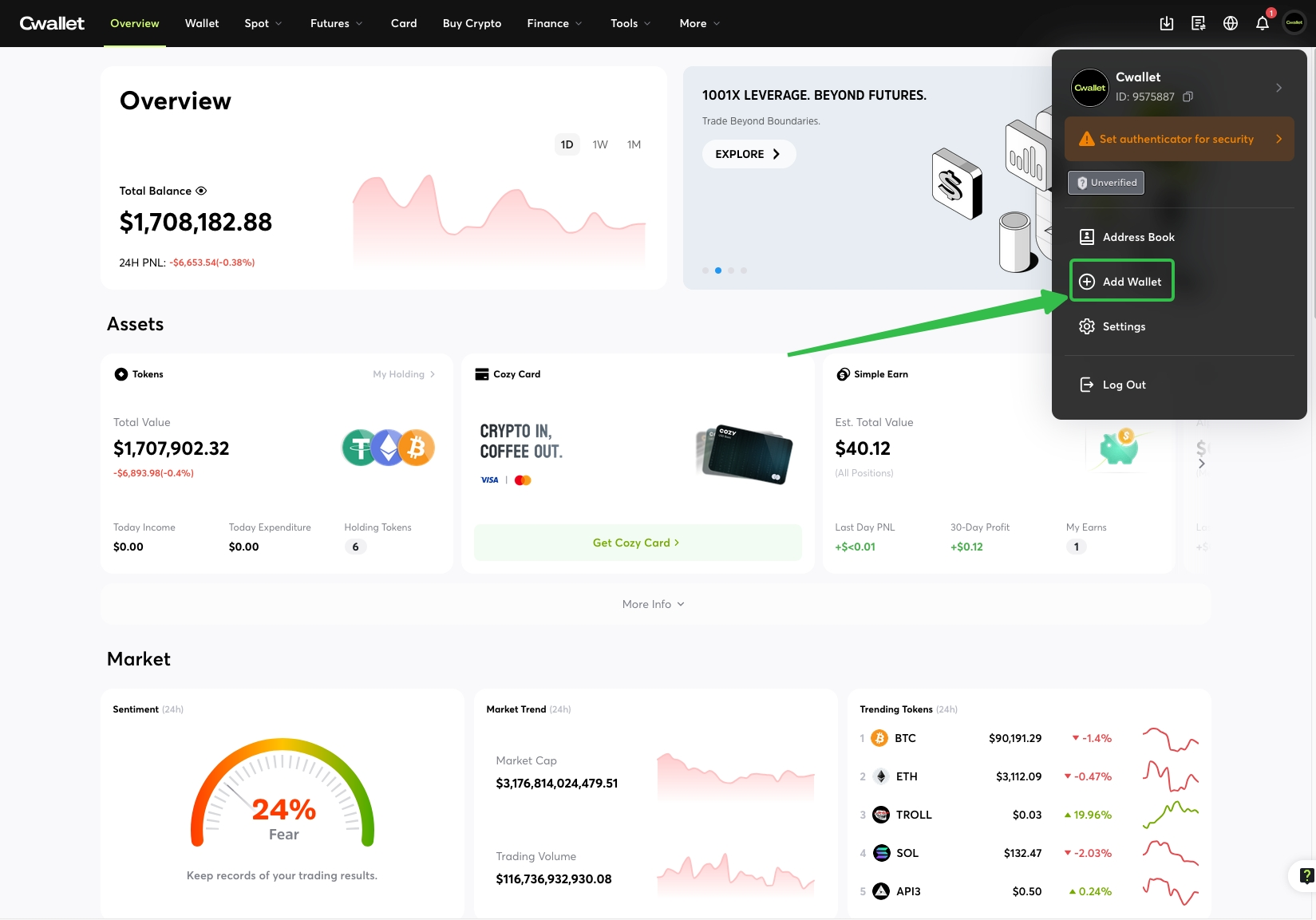
Navigate to the avatar photo in the upper right corner, you will see the '**Add Wallet**' option, click it, and log in to your other Cwallet accounts.
After you have logged into your other Cwallet accounts, you will see an account list below the '**Switch Wallet**' option.
When you want to use another Cwallet account, just click it.
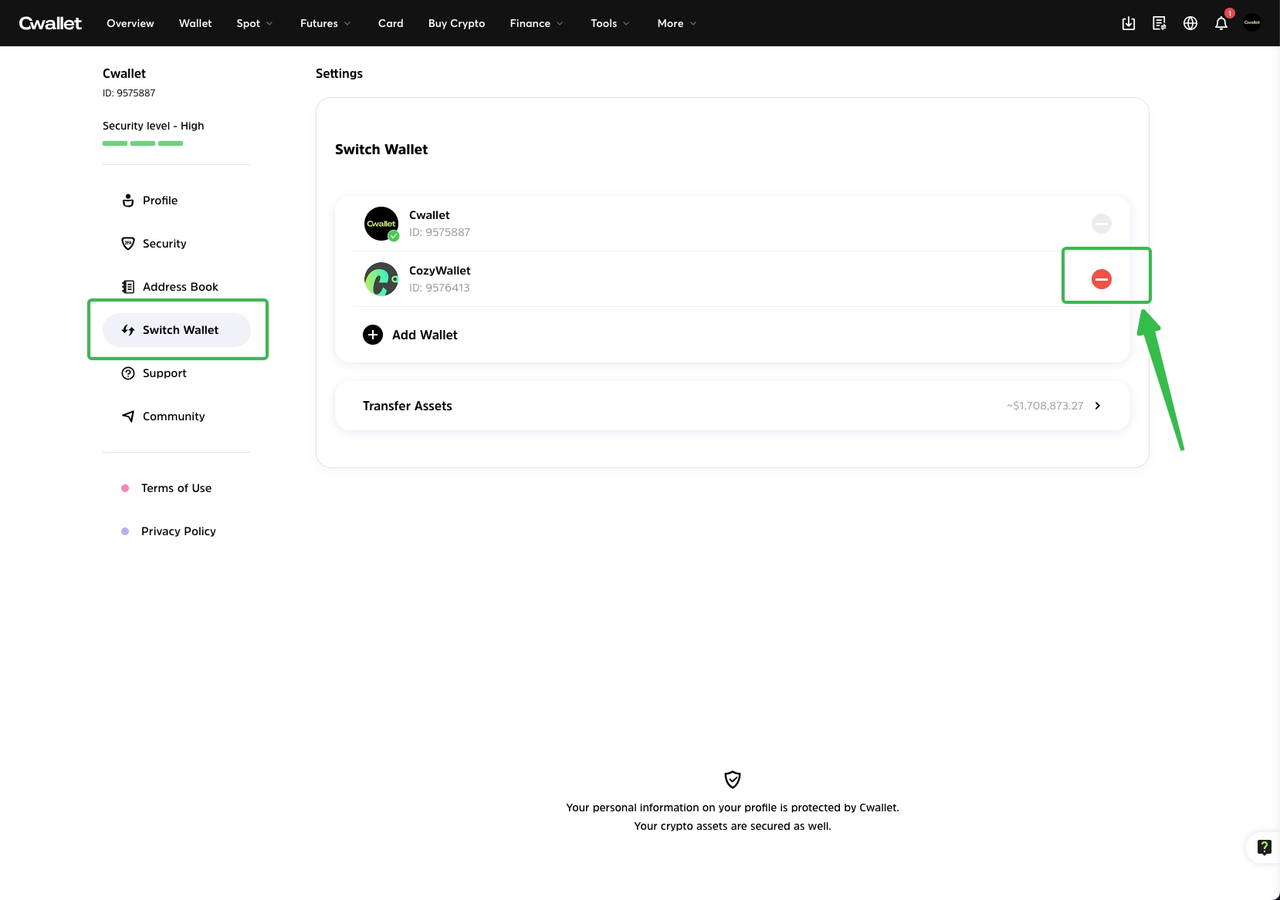
When you no longer use one of the Cwallet accounts, check the avatar photo in the upper right corner, and click the '**Settings**' option.
On this page, you can click the '**Switch Wallet**' option, then you will see that you can remove accounts that have been added.
⚠️ **NOTE:** You can add your account back to the switch list after removing it, and removing an account does not mean deleting it.